 by Savi3
When I recently switched to a new laptop, I expected my work to carry on smoothly. But the next morning, my Power BI dashboard failed to refresh, and I was greeted with this dreaded error message:
‘Report has failed to refresh. The last refresh attempt failed because of an internal service error. DMTS_OAuthTokenRefreshFailedError… Device used during authentication is disabled.’
At first, I thought it was a one-off glitch. But after retrying, the error persisted. That’s when I discovered — this is a common issue Power BI users face after changing laptops or when IT disables an old device in Azure Active Directory. The problem boils down to cached credentials and authentication tokens that no longer work once your old device is decommissioned.
Here’s what worked for me (and should work if you’re facing something similar):
Update Credentials in Power BI Service
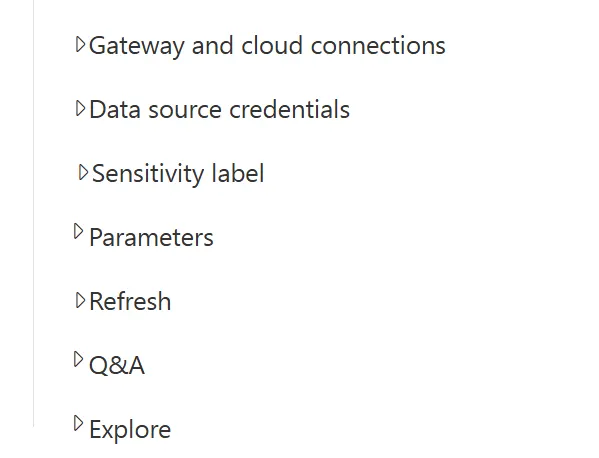
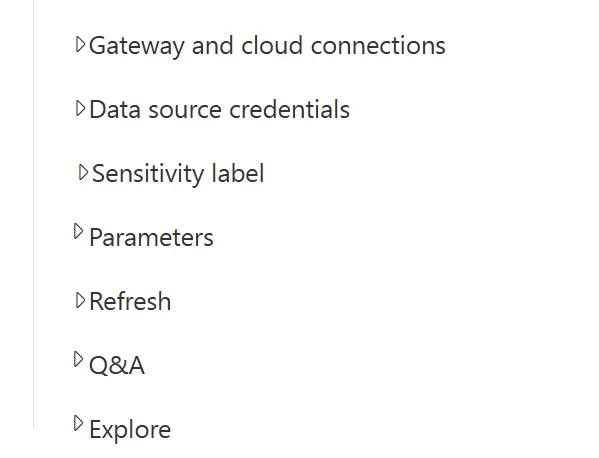
Go to Power BI Service → Settings → Datasets → Data Source Credentials.
Re-enter authentication details (OAuth, organizational account, or API keys depending on your source).
Refresh and Test
- Run a manual refresh to confirm the fix.
- Once successful, re-enable scheduled refresh.
Key Takeaways
- New laptops ≠ seamless transition for Power BI. Always double-check your gateway and credentials.
- Laptop changes often break Power BI refreshes because of gateway dependencies and expired Azure AD tokens.
- To avoid this dependency, consider moving from a personal gateway to a shared/enterprise gateway so refreshes don’t rely on a single machine.
Closing thought: If your Power BI dashboards stop refreshing after a laptop change, don’t panic. It’s usually a credentials or gateway issue — and with a quick reset, you’ll have your reports running smoothly again.